Amazon labels differ by fulfilment route
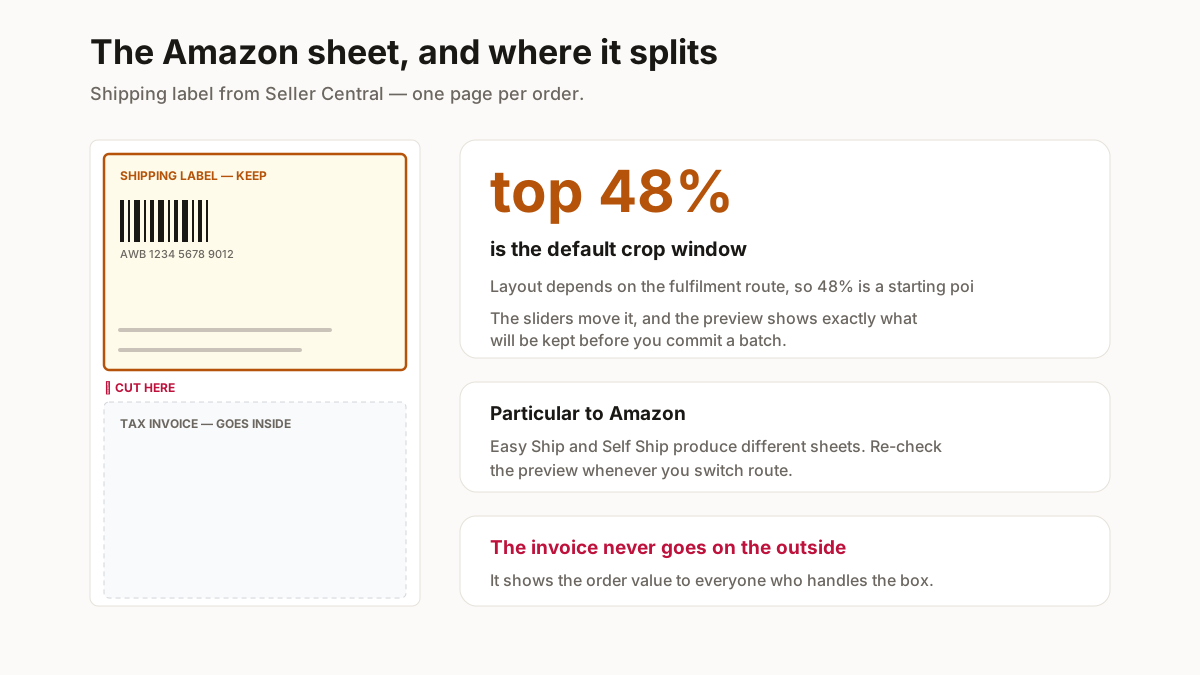
This is what makes Amazon labels more awkward than the others: the layout is not constant. Self-ship, Easy Ship and FBA produce different sheets, and a window that is right for one clips another.
So the preset here is a starting point rather than a rule. Load your PDF, look at the blue window against the preview, and move the sliders until the barcode and the address block both sit comfortably inside it. Once it is right for your route it stays right.
FNSKU labels are a different job
Worth separating, because people arrive here looking for the wrong tool. A shipping label goes on the outside of the parcel and carries the customer’s address. An FNSKU label goes on the product itself, identifies it in Amazon’s warehouse, and prints many-up on a sticker sheet rather than one per parcel.
If that is what you need, the FNSKU label page covers it.
Which route are you actually on?
Amazon India gives a seller three ways to get a parcel to a customer, and they produce different paperwork. Knowing which one you are on saves guessing at the crop.
FBA. Amazon holds your stock and ships it. You never handle a customer shipping label — what you label is the inbound shipment and the units inside it, which is a different job covered on the FNSKU label page.
Easy Ship. You hold the stock, Amazon’s courier collects it. Seller Central generates the label and you print and apply it. This is the common case here.
Self Ship. You hold the stock and arrange your own courier. The paperwork depends partly on the courier, so the preset is the least reliable on this route and the preview matters most.
Validate the window once per route
A crop that is correct for Easy Ship can clip a Self Ship sheet, because the layouts are not the same document. Load one label from the route you are on, check the barcode and address block both sit inside the blue window, and it will hold for every batch on that route afterwards.
Printing an Amazon label so it scans
A parcel rejected at an Amazon facility takes longer to resolve than one refused by a courier at your door, so the checks are worth doing before the batch rather than after. There are five.
| Do this | Because |
|---|---|
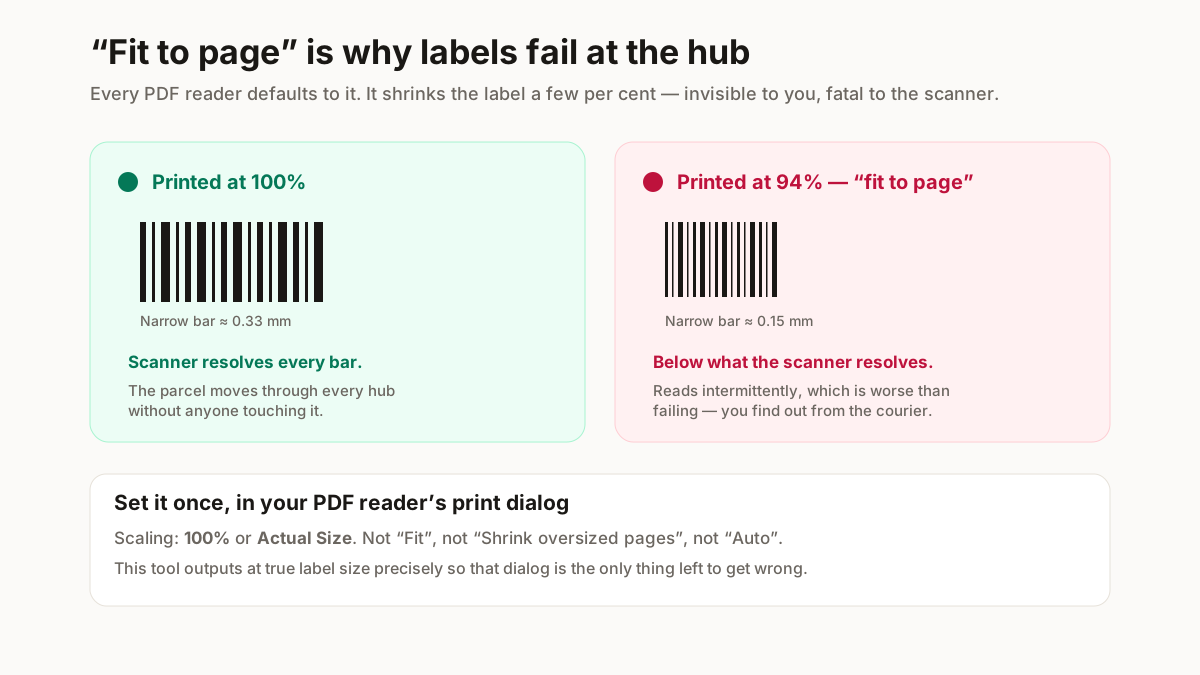
| Print at 100%, never "fit to page" | Scaling shrinks the barcode modules below what the hub scanner resolves. This is the single most common cause of a rejected parcel. |
| Thermal, not inkjet, if you can | Inkjet smudges in transit and in humidity. A thermal print survives a monsoon delivery; an inkjet one often does not. |
| Check the barcode is fully inside the crop | A barcode clipped at the edge scans as nothing. The preview shows the exact window before you commit a batch. |
| Keep the quiet zone | Barcodes need clear space either side. Cropping tight to the bars is the same as damaging them. |
| Do not photocopy labels | Each generation loses contrast, and the AWB barcode is the first thing to become unreadable. |
Print at 100%. Every PDF reader defaults to “fit to page”, which shrinks the barcode below scanner tolerance while looking identical to you.
The one particular to Amazon: because the sheet layout depends on the fulfilment route, a crop window you validated against an Easy Ship label can clip a Self Ship one. Check the preview whenever you switch route — not only the first time you use the tool.
Why this runs in your browser
A shipping label is not a neutral document. It carries your customer’s full name, complete address and phone number — for every order on the sheet.
Uploading a morning’s labels to a free online cropper hands a stranger a list of your customers, with contact details, in a format built for direct marketing. Most of those sites are ad-funded and none of them tell you what happens to the file.
This one does the work on your own machine. The PDF is read into the browser tab, cropped there and written back out. Nothing is uploaded, so there is nothing to retain, leak or sell.
Related free seller tools
Frequently Asked Questions
Why does the Amazon preset need adjusting more often?
Because Amazon emits different label layouts for self-ship, Easy Ship and FBA, where Flipkart and Meesho are consistent. Set the window once for your fulfilment route and it stays correct.
What is the difference between a shipping label and an FNSKU label?
A shipping label goes on the outside of the parcel and carries the customer address and AWB barcode. An FNSKU label goes on the product and identifies it inside Amazon’s warehouse. They print differently — one per parcel versus many-up on a sticker sheet.
Can I print Amazon labels at 4×6?
Yes, and it is the standard thermal size. If your source label is a different aspect the tool scales it to fit without distorting it, leaving white margins rather than stretching the barcode.
Does this work for FBA?
Not for customer shipping labels — under FBA, Amazon generates and applies those, and you never handle one. What you do label under FBA is the inbound shipment and the units in it, which is the FNSKU job rather than this one.
Why does my Amazon crop window stop working?
Almost always because you switched fulfilment route. Easy Ship and Self Ship produce different sheets, so a window validated on one can clip the other. Load a label from the route you are on and check the preview once; it will hold for every batch on that route.
Can I print Amazon labels on a normal printer?
Yes, on A5 or plain paper in a clear pouch, as long as scaling is set to 100%. A thermal printer is better if you dispatch daily, because the print survives handling and humidity and there is no ink to run out mid-batch.
Is this label cropper free?
Yes, with no signup and no watermark. It runs in your browser using a client-side PDF library, so there is no upload queue and no per-label cost.
Do you see my customers’ addresses?
No. The PDF is opened, cropped and saved inside your browser tab — it is never sent anywhere. That matters more here than on most tools, because a shipping label carries a customer’s full name, address and phone number.
Print at 100%, and check the barcode is inside the crop. Those two things account for nearly every label that fails to scan at the courier hub, and both are free to get right before you print a batch of forty.